Outdated promotional copy
Clear an old offer or heading from an image you are authorized to reuse. A plain wall, sky, or studio backdrop is easier to rebuild than detailed fabric behind the letters.
AI photo brush
Keep the composition and clear the words that no longer belong. Mark a caption, label, or text overlay and let AI replace that region using nearby visual context. This is a text eraser for pictures, not an OCR or text extraction tool.
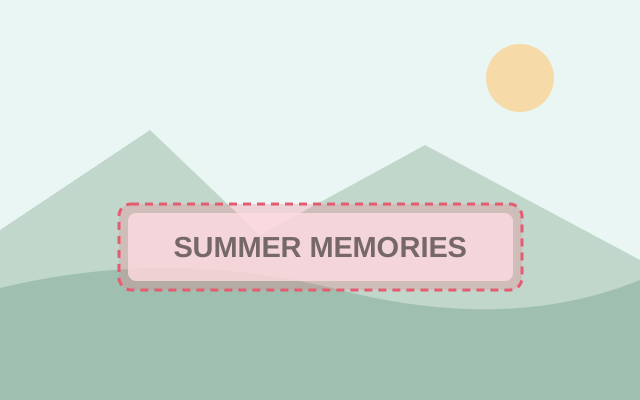
Selection guide · illustration, not an edit result
Cover every letter, including outlines and drop shadows. Keep the selection close to the text instead of painting the whole image.
2 free edits per network IP every 24 hours, shared across all tools. JPG, PNG, WebP; up to 10 MB and 16 MP.
Step 1
2 free edits per network IP every 24 hours. Failed edits do not count.
Clear an old offer or heading from an image you are authorized to reuse. A plain wall, sky, or studio backdrop is easier to rebuild than detailed fabric behind the letters.
Erase a caption while keeping the full frame. When text crosses a subject’s outline, check the reconstructed edge before using the cleaned image.
Upload a JPG, PNG, or WebP within 10 MB and 16 megapixels. An original export usually shows letter edges more clearly than a screenshot.
Paint over the full word, including thin strokes, an outline, and any text shadow. Use separate selections for text blocks far apart.
Select Remove object and inspect the patch at full size. Check repeating textures and straight edges, then download the PNG.
Anti-aliased pixels and outlines can look like a ghost caption after removal. Expand the selection slightly if a letter edge remains.
If you only want one line gone, use a narrow brush between lines. The tool cannot reliably infer which unmarked document text matters to you.
The tool attempts to rebuild the selected background from its surroundings. It works best when enough similar color and texture remain visible, but an exact background match is not guaranteed.
No. This workflow erases the selected words visually. Use a dedicated OCR or translation tool if you need the text as editable characters.
The editor clears a selected area and exports an image. It does not include text authoring; add your new caption in a separate design editor after downloading.
Choose a task for selection advice, practical steps, and what to expect from the result.