Screenshot circles and arrows
Erase a temporary annotation from an image you created. Where the mark crosses a button or word, the generated fill may not reproduce the original interface or text.
AI photo brush
Clear a doodle, circle, or arrow added to a photo or screenshot you own. Trace the visible marks and let AI rebuild the selected strip. This can tidy an image, but opaque scribbles cannot be reversed to reveal exact text or details underneath.
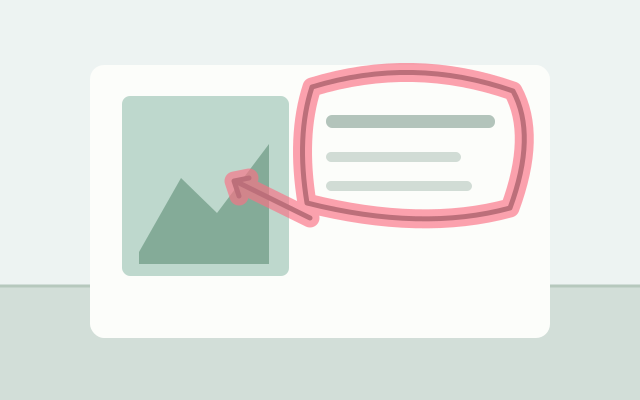
Selection guide · illustration, not an edit result
Trace every stroke, including small detached dots and soft marker edges. Leave gaps between strokes unselected when those areas are already clean.
2 free edits per network IP every 24 hours, shared across all tools. JPG, PNG, WebP; up to 10 MB and 16 MP.
Step 1
2 free edits per network IP every 24 hours. Failed edits do not count.
Erase a temporary annotation from an image you created. Where the mark crosses a button or word, the generated fill may not reproduce the original interface or text.
Clean thin doodles on a scan or saved picture. Start with marks over open background, where there is enough visual context to review the reconstruction.
Upload a JPG, PNG, or WebP within 10 MB and 16 megapixels. Use an unmarked source instead if you still have one.
Set a small brush and cover each circle, arrow, line, or dot. Include soft edges without filling a large clean area between the strokes.
Run the removal and look for broken image edges or invented writing. Download the edited PNG only after checking the repaired region.
A circle does not require selecting everything inside it. Trace its circumference to preserve more of the original content in the middle.
An opaque mark can destroy the text beneath it in a flattened image. AI output is not a reliable method to recover names, numbers, or document wording.
No. An opaque scribble replaces the underlying pixels. The tool may invent shapes or letters, but they cannot be treated as the original wording.
Only if that area also needs removal. For a simple annotation circle, trace the visible line and keep the clean content inside it unmarked.
You can upload a scan as a supported image and mark local strokes. The editor does not automatically preserve printed text, tables, or document layout; inspect any intersecting content carefully.
Choose a task for selection advice, practical steps, and what to expect from the result.