Travel photos with passers-by
Clean up a person crossing a beach, street, or landmark photo. Small figures against sand or open sky give the editor more visible background to work with.
AI photo brush
A passer-by does not have to be the focus of your favorite travel photo. Brush over the person you want to remove, let AI rebuild that part of the background, and check the result before saving. You choose who stays in the picture.
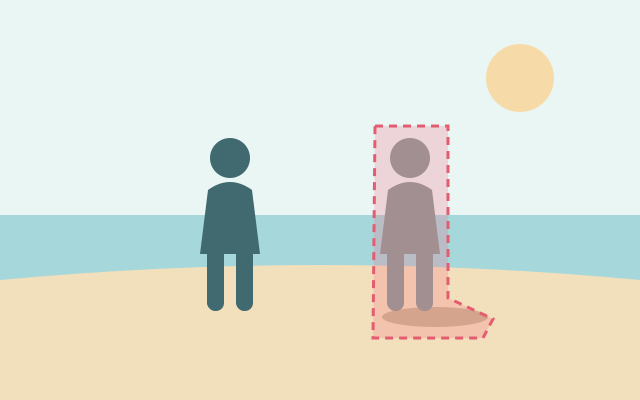
Selection guide · illustration, not an edit result
Cover the unwanted person from head to shoes, plus any shadow they cast. Leave the person you want to keep outside the selection.
2 free edits per network IP every 24 hours, shared across all tools. JPG, PNG, WebP; up to 10 MB and 16 MP.
Step 1
2 free edits per network IP every 24 hours. Failed edits do not count.
Clean up a person crossing a beach, street, or landmark photo. Small figures against sand or open sky give the editor more visible background to work with.
Select one person without marking the rest of the group. If bodies overlap, the AI must invent hidden clothing and edges; inspect those boundaries carefully.
Use the original JPG, PNG, or WebP rather than a compressed screenshot. The file must fit within 10 MB and 16 megapixels.
Include hair, hands, feet, and disconnected parts of the silhouette. Cover their shadow if it would remain as a visible distraction.
Run the removal, compare with the original, and inspect nearby people, railings, and horizon lines. Download the result as a PNG when satisfied.
Separate figures are easier to inspect individually. Continue editing the result if another person needs removal; each additional removal uses one edit.
Use a smaller brush near shoulders or faces you want to preserve. Avoid sweeping across the entire group just to reach a small gap.
Yes. The brush lets you mark only the person you want removed. Check neighboring faces and clothing after processing, especially where two people touch or overlap.
Include a clearly connected shadow if you want it gone too. Leaving the shadow outside the marked area can leave a dark shape after the person disappears.
No. AI generates replacement content from visible surroundings. A hidden hand, face, sign, or building detail cannot be recovered exactly from this photo.
Choose a task for selection advice, practical steps, and what to expect from the result.