A quick composition fix
Clear a bin, sign, or small item that draws attention away from your subject. Keep the selection local rather than painting the entire background.
AI photo brush
Make a focused photo correction right in your browser. This magic eraser uses your painted selection to replace an unwanted detail with AI-generated content. Start with a small object, refine the brush around its edges, and review the result without installing a photo editor.
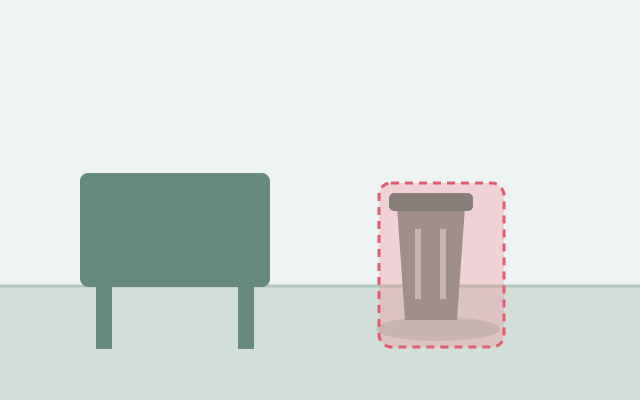
Selection guide · illustration, not an edit result
The highlighted area tells AI where to work. Paint the distraction and its narrow boundary, while leaving useful background visible around it.
2 free edits per network IP every 24 hours, shared across all tools. JPG, PNG, WebP; up to 10 MB and 16 MP.
Step 1
2 free edits per network IP every 24 hours. Failed edits do not count.
Clear a bin, sign, or small item that draws attention away from your subject. Keep the selection local rather than painting the entire background.
After reviewing a result, continue editing to mark a leftover edge or another distraction. The previous changes become the starting point for the next pass.
Select a JPG, PNG, or WebP within 10 MB and 16 megapixels. No account or app installation is required.
Use Brush size to fit the target. Paint on the photo; Undo lets you correct an accidental stroke before starting a removal.
Choose Remove object, inspect the result, and use Compare with original. Download the PNG or continue editing if a smaller patch needs attention.
A larger brush covers an open area; a smaller one helps beside a subject you want to keep. Include a little margin around the distraction, not an entire unrelated object.
A new pass uses another edit from the shared quota. Decide which part needs correction and mark only that area rather than rerunning a large selection.
No. Upload and mark the image in your browser. Image editing requires an internet connection; this is not an offline eraser.
No. This is AI Object Remover’s own browser workflow. It is not affiliated with Google Photos, Canva, or Magic Studio.
Yes. Use Undo to correct your selection before processing. After a result is generated, compare it with the original and keep your original file if you need to start over.
Choose a task for selection advice, practical steps, and what to expect from the result.