Product price labels
Clear a temporary price sticker from your own product image. Check that the repaired patch still follows the product’s curve, texture, and lighting.
AI photo brush
A price label or decorative sticker can interrupt a useful product photo. Brush over the sticker, including its border, and inspect the AI-generated surface. This changes the picture only; it does not remove a physical sticker or reveal its exact hidden material.
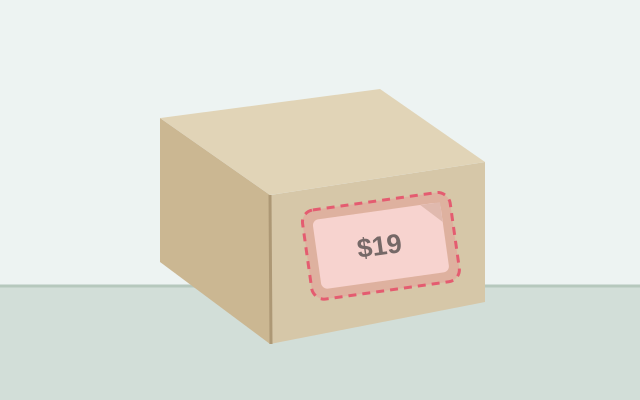
Selection guide · illustration, not an edit result
Cover the sticker, curled corners, adhesive residue visible in the photo, and its local shadow. Keep the product silhouette outside the selection.
2 free edits per network IP every 24 hours, shared across all tools. JPG, PNG, WebP; up to 10 MB and 16 MP.
Step 1
2 free edits per network IP every 24 hours. Failed edits do not count.
Clear a temporary price sticker from your own product image. Check that the repaired patch still follows the product’s curve, texture, and lighting.
Erase a saved sticker graphic from a picture you created. A large sticker covering a subject leaves fewer clues, so use the unedited source when available.
Select a JPG, PNG, or WebP within 10 MB and 16 megapixels. For a product shot, use a source with clear material texture.
Cover the full sticker and any visible curled corner or shadow. Use a smaller brush near a rim, handle, seam, or product boundary.
Process the selection and check whether curves, reflections, and texture remain convincing. Download the edited image as PNG.
A label may cast a thin shadow even when its main color is gone. Include that local edge if it would look like leftover adhesive or a dark seam.
AI can invent markings hidden under the sticker. Do not rely on a generated patch to establish a product’s actual text, condition, or identifying details.
You can mark the label and generate a replacement surface. Inspect the material, product shape, and any nearby markings before using the image in a listing.
No. Hidden numbers are not present in the saved image. A generated number or pattern would be invented; obtain another photo to verify product information.
No. It edits pixels in the photo. For a photograph of the actual bare surface, remove the sticker from the object and take a new picture.
Choose a task for selection advice, practical steps, and what to expect from the result.